Loading resources…
Total 1760 resources
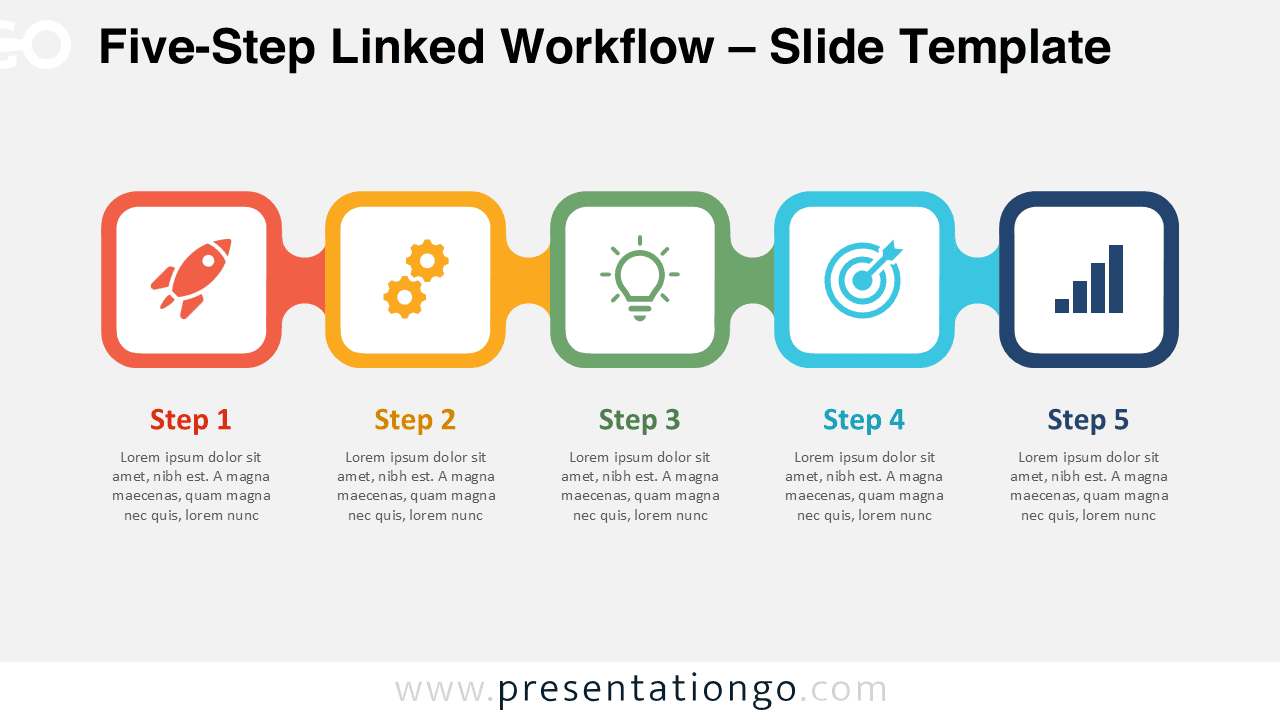
Download the Five-Step Linked Workflow for PowerPoint and Google Slides. Edit five connected stages, text, shapes, and icon placeholders for projects.
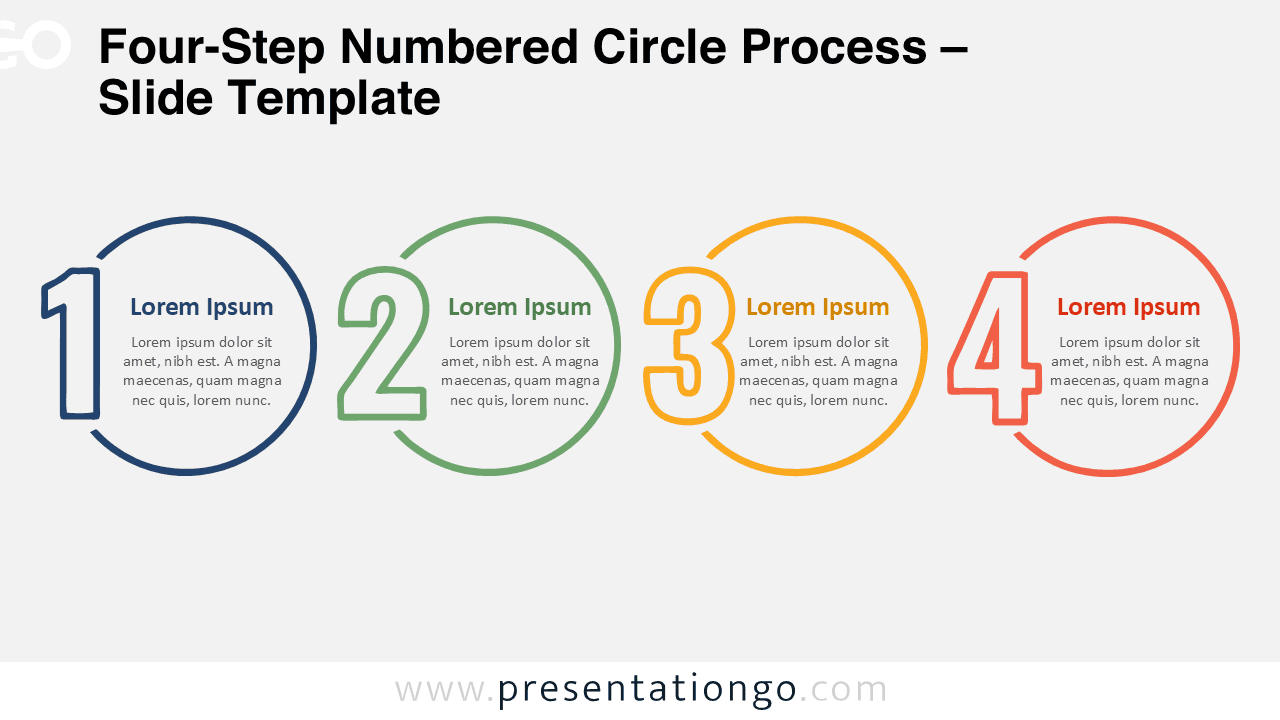
Download the Four-Step Numbered Circle Process diagram for PowerPoint and Google Slides, with four editable stages for workflows, plans, and milestones.
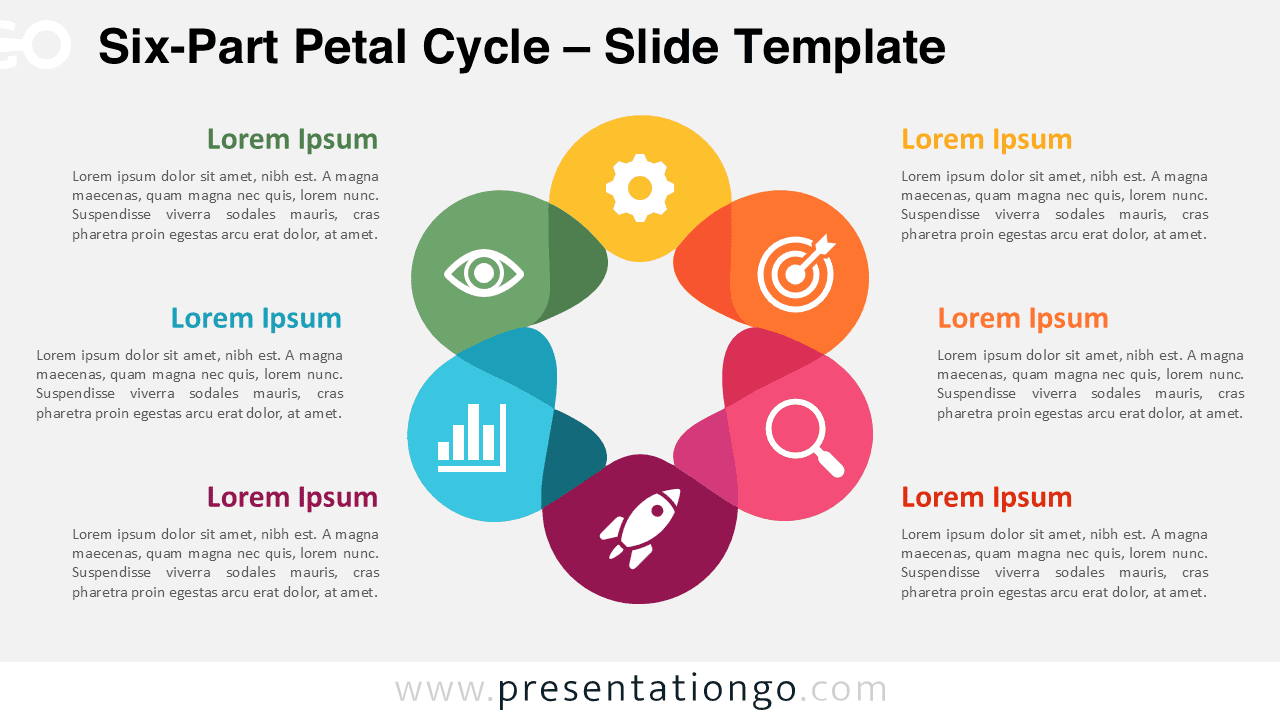
Download the Six-Part Petal Cycle diagram for PowerPoint and Google Slides, with six connected sections for processes, strategies, and key concepts.
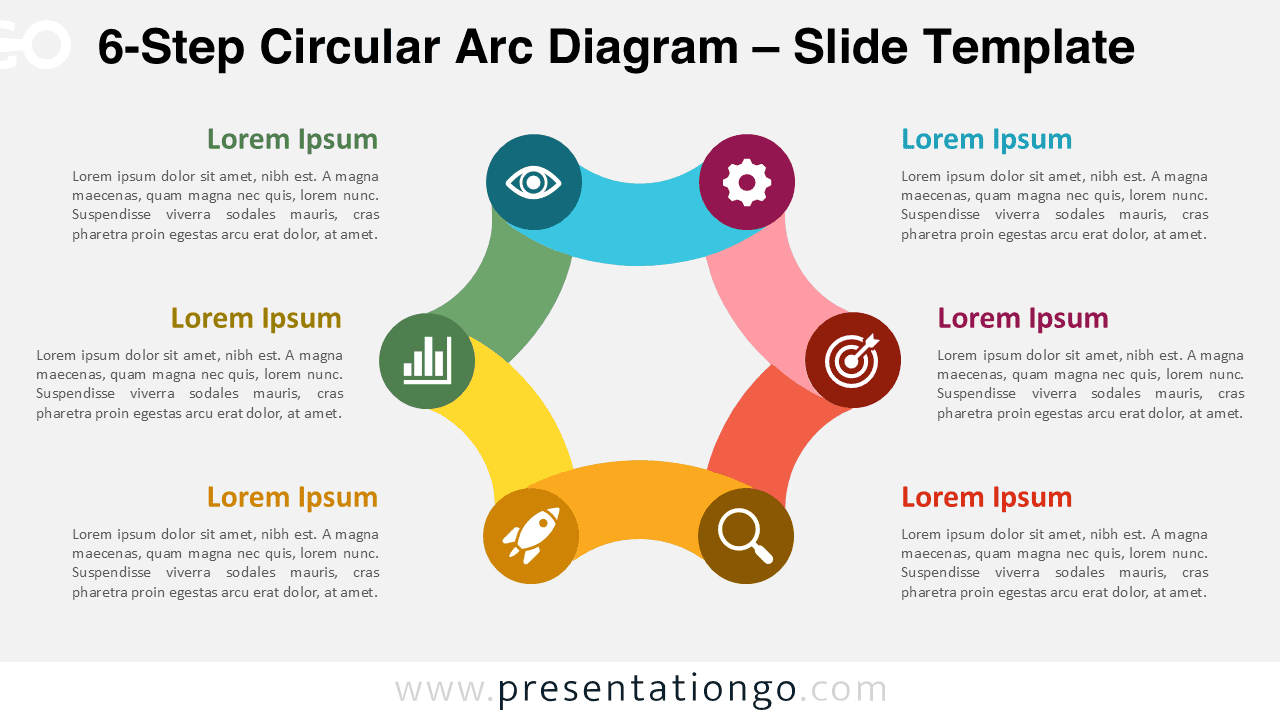
Use the 6-Step Circular Arc Diagram in PowerPoint and Google Slides to present cyclical workflows, six-stage processes, strategy loops, and recurring plans.
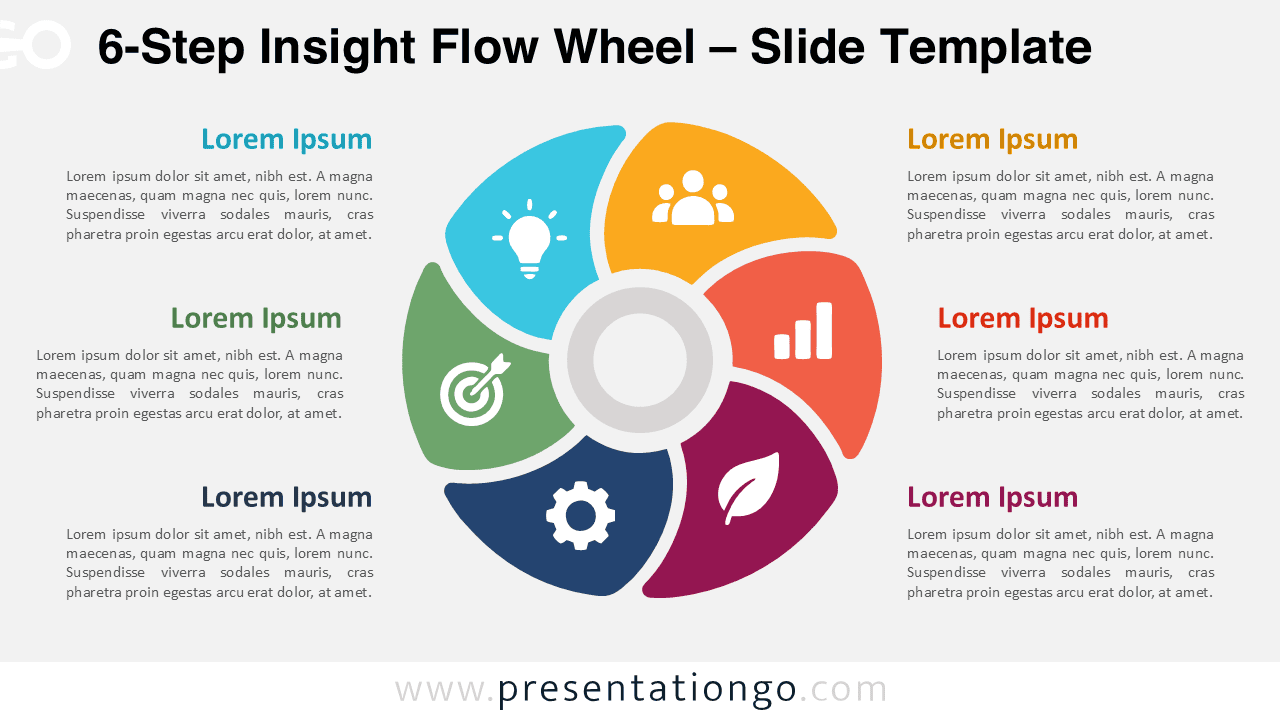
Download the 6-Step Insight Flow Wheel for PowerPoint and Google Slides with six editable segments, icon placeholders, and matching text areas.
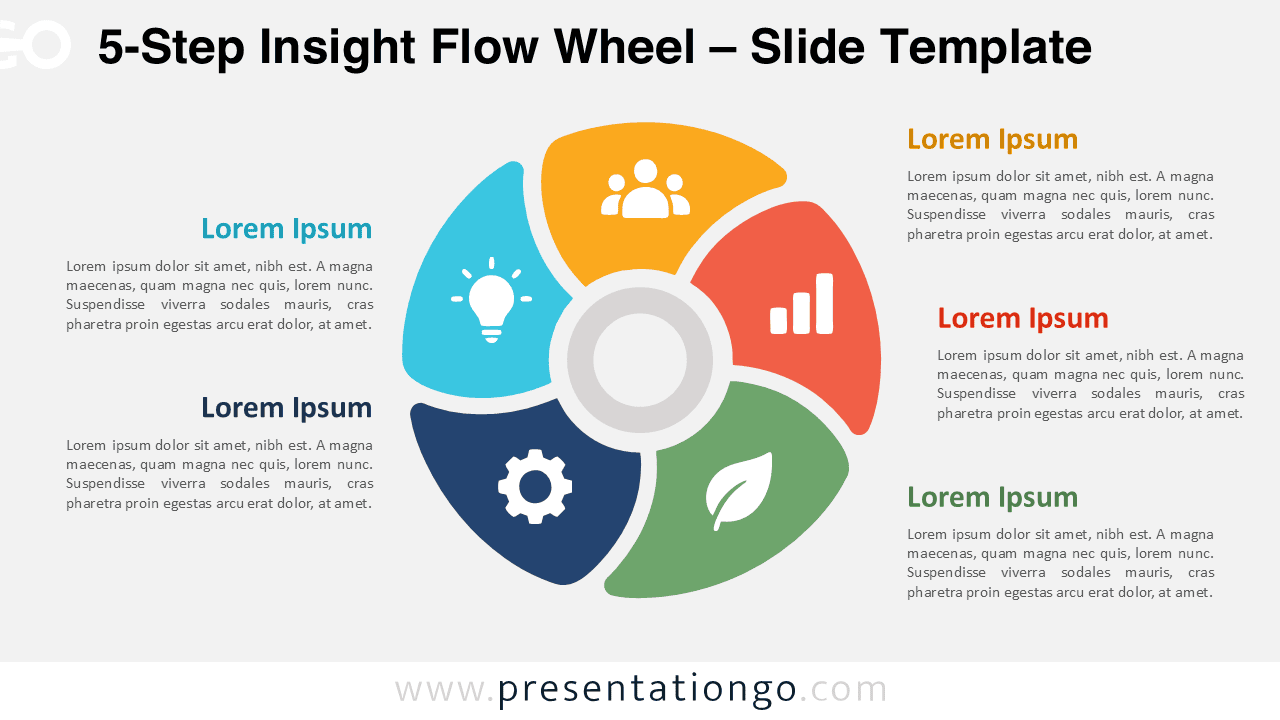
Use the 5-Step Insight Flow Wheel in PowerPoint and Google Slides to organize five connected ideas with editable segments, icons, and text.
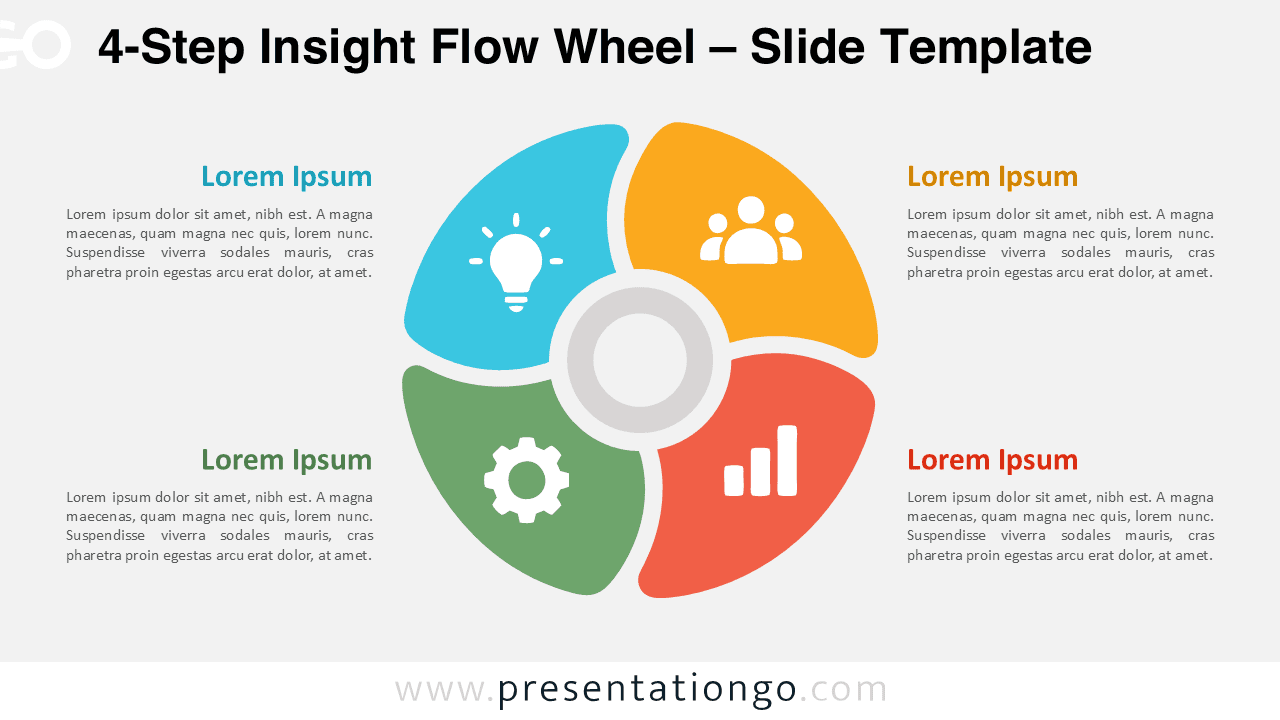
Download the 4-Step Insight Flow Wheel for PowerPoint and Google Slides, featuring four editable segments, icon placeholders, and text areas.
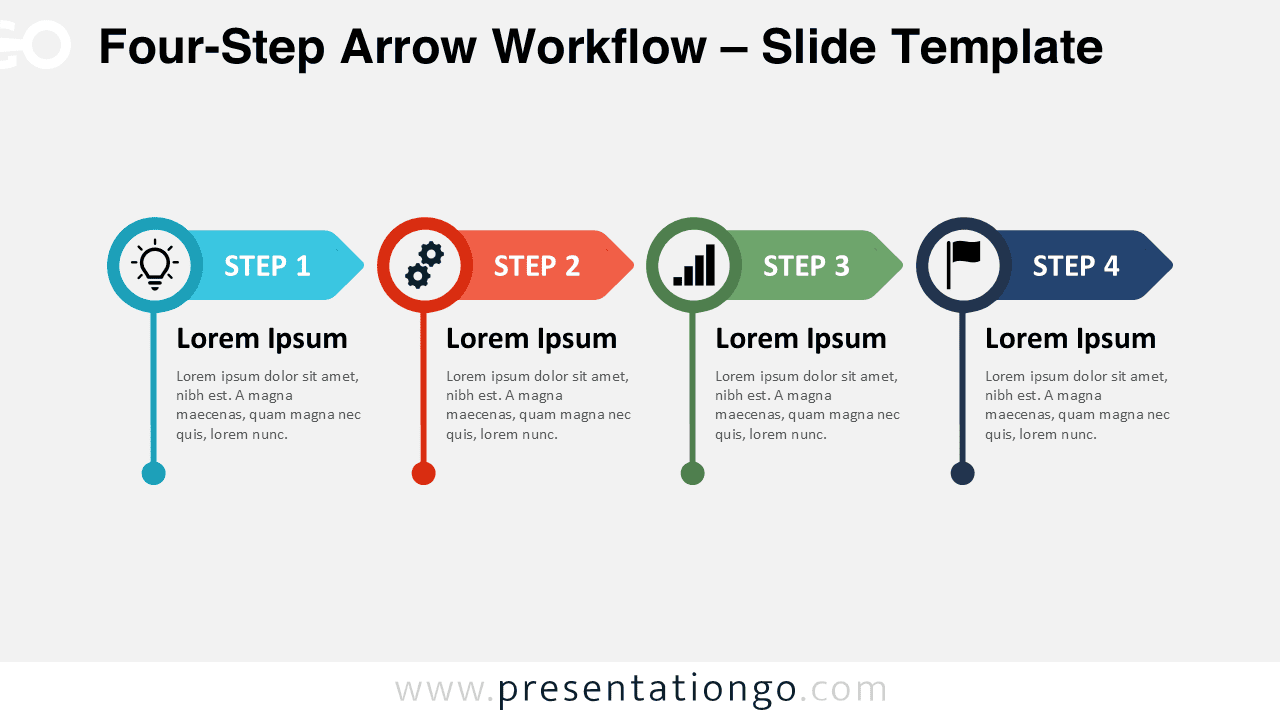
Four-Step Arrow Workflow for PowerPoint and Google Slides with editable arrows, icons, text, and shapes for processes, plans, and project stages.
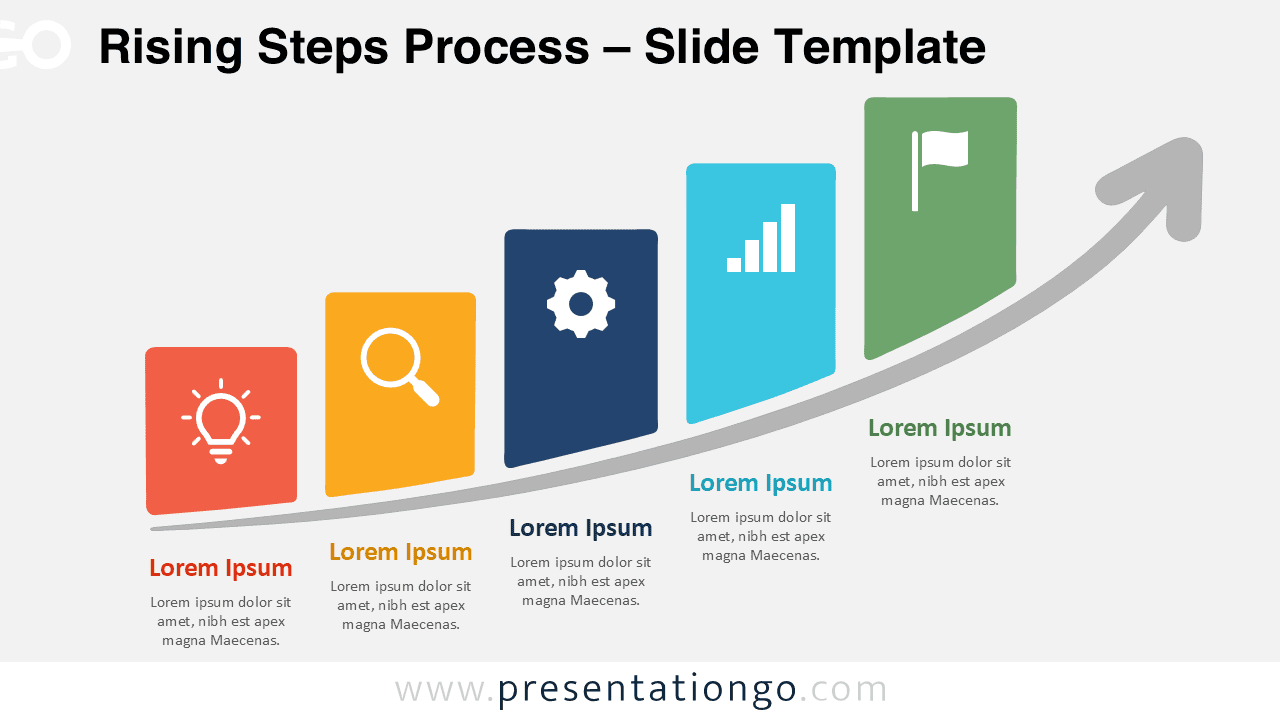
Download the Rising Steps Process diagram for PowerPoint and Google Slides. Show five stages of growth, progress, strategy, or project development.
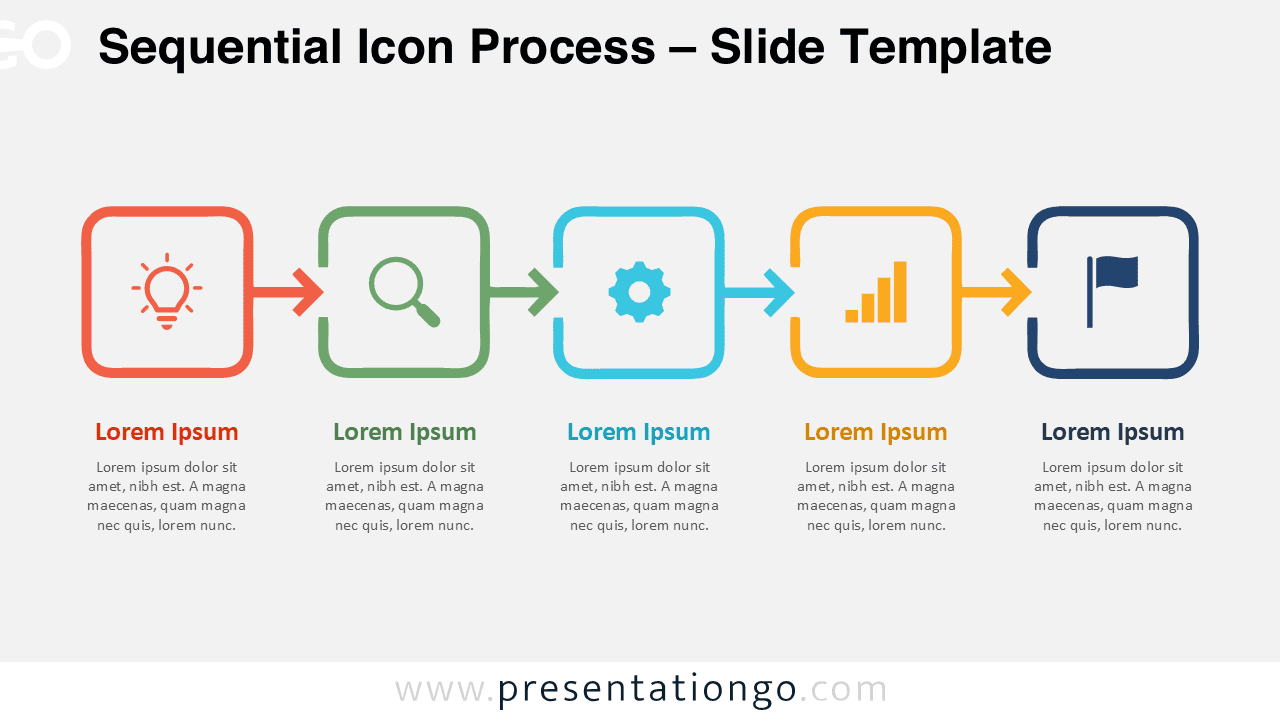
Create clear five-step workflows with the Sequential Icon Process for PowerPoint and Google Slides, featuring editable stages, arrows, text, and icons.
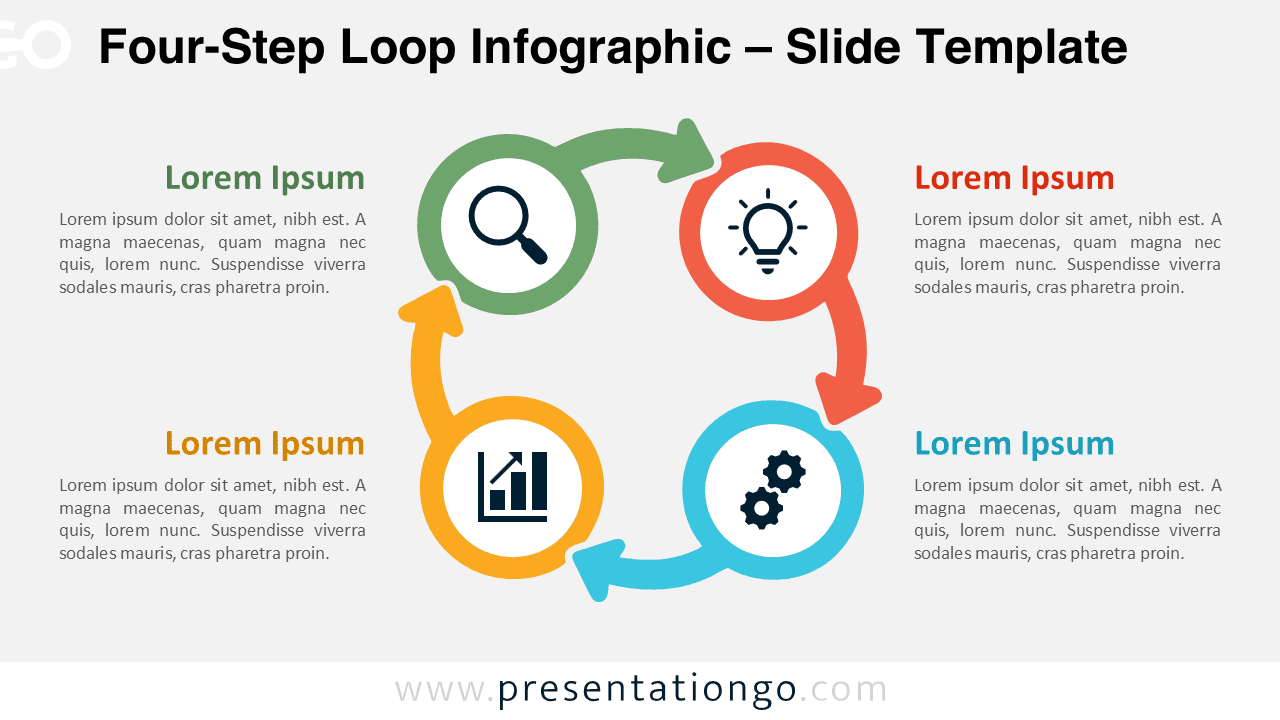
Download the Four-Step Loop Infographic for PowerPoint and Google Slides, featuring an editable circular process with four connected stages.
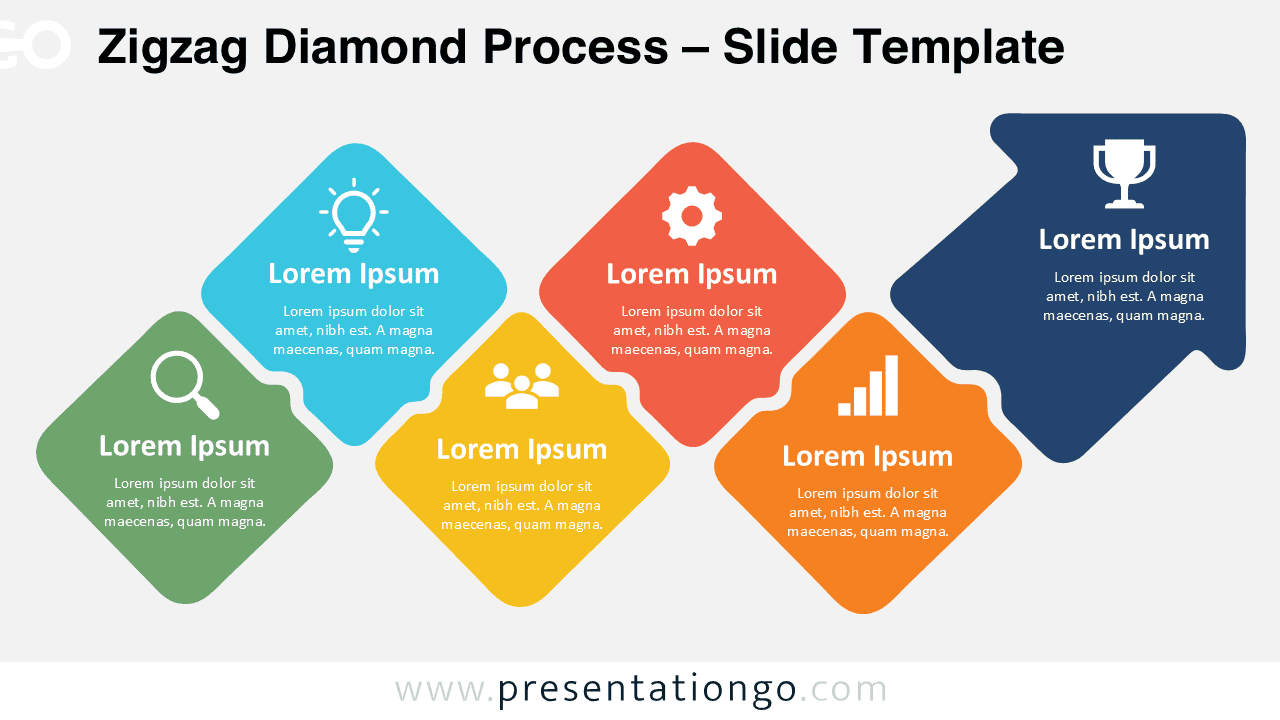
Download the Zigzag Diamond Process for PowerPoint and Google Slides to present 5 or 6 connected stages with editable shapes, text, and icons.
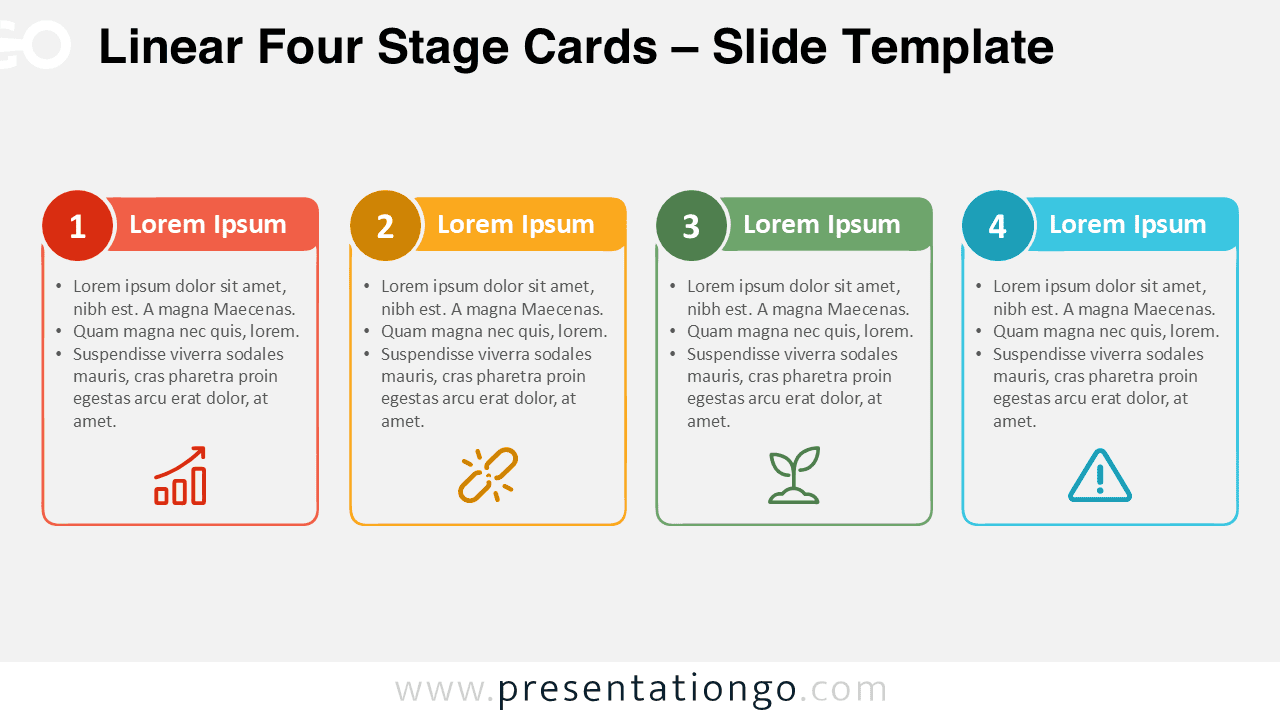
Download Linear Four Stage Cards, an editable four-step diagram for PowerPoint and Google Slides, ideal for processes, workflows, plans, and strategies.
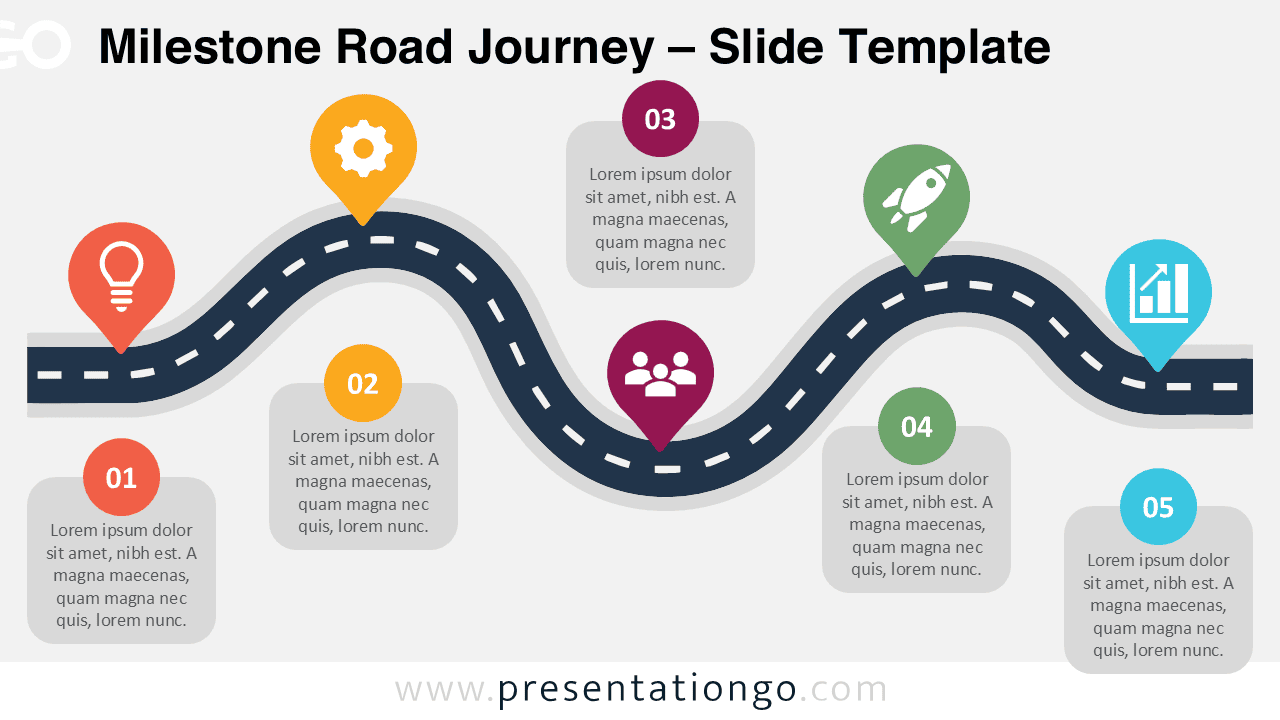
Download the Milestone Road Journey diagram for PowerPoint and Google Slides. Adapt the milestones to present projects, processes, plans, and business journeys.
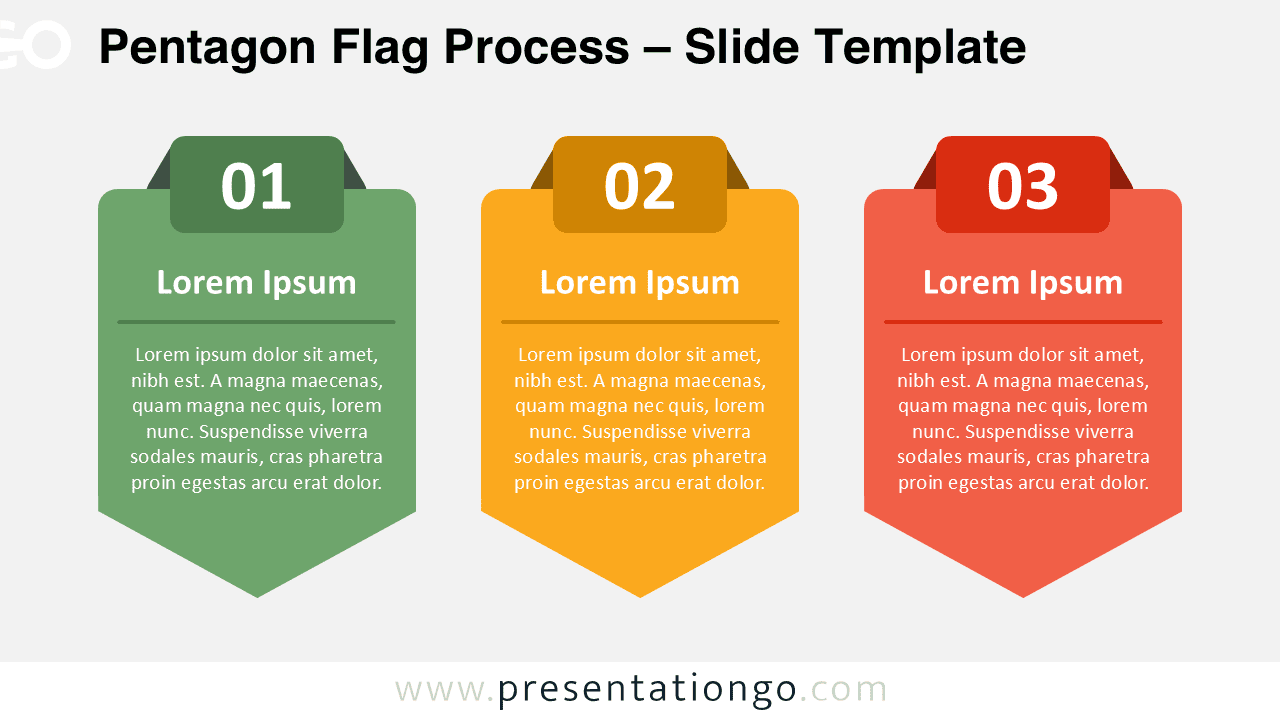
Use the Pentagon Flag Process PowerPoint diagram to present three stages clearly. Fully editable for PowerPoint and Google Slides presentations.
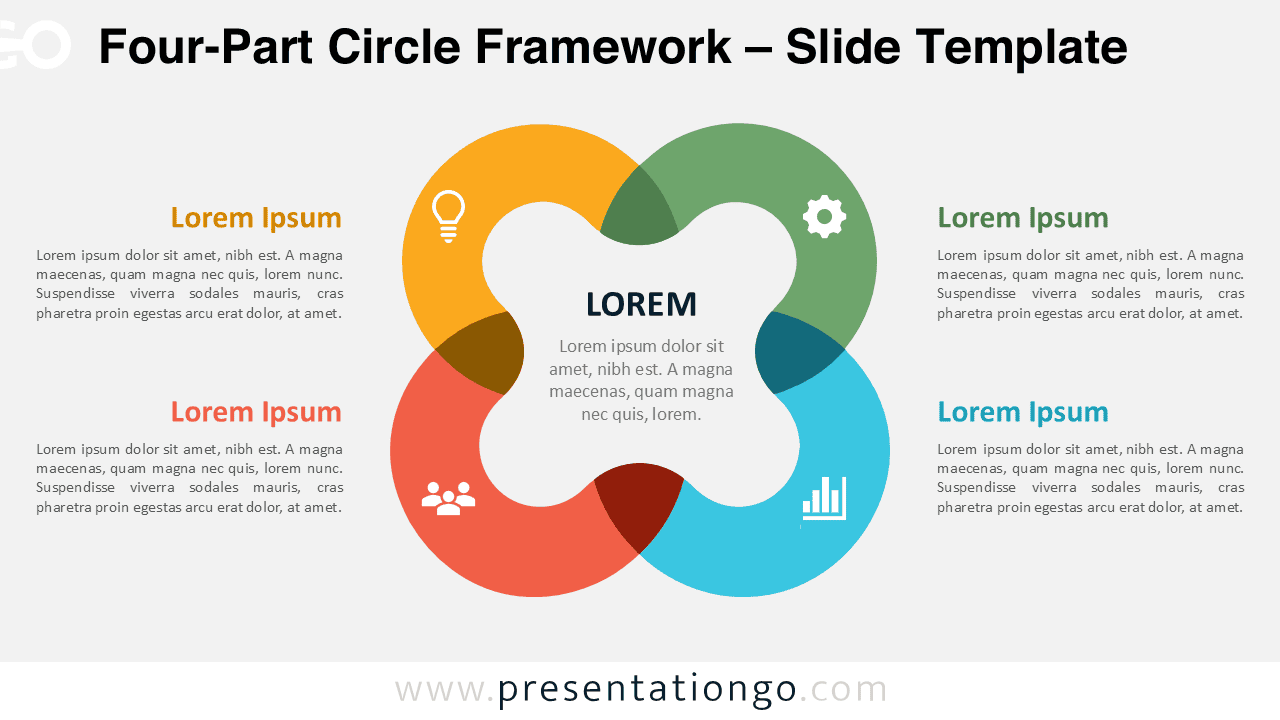
Use the Four-Part Circle Framework in PowerPoint and Google Slides to explain four related concepts, priorities, pillars, or functions around one central idea.
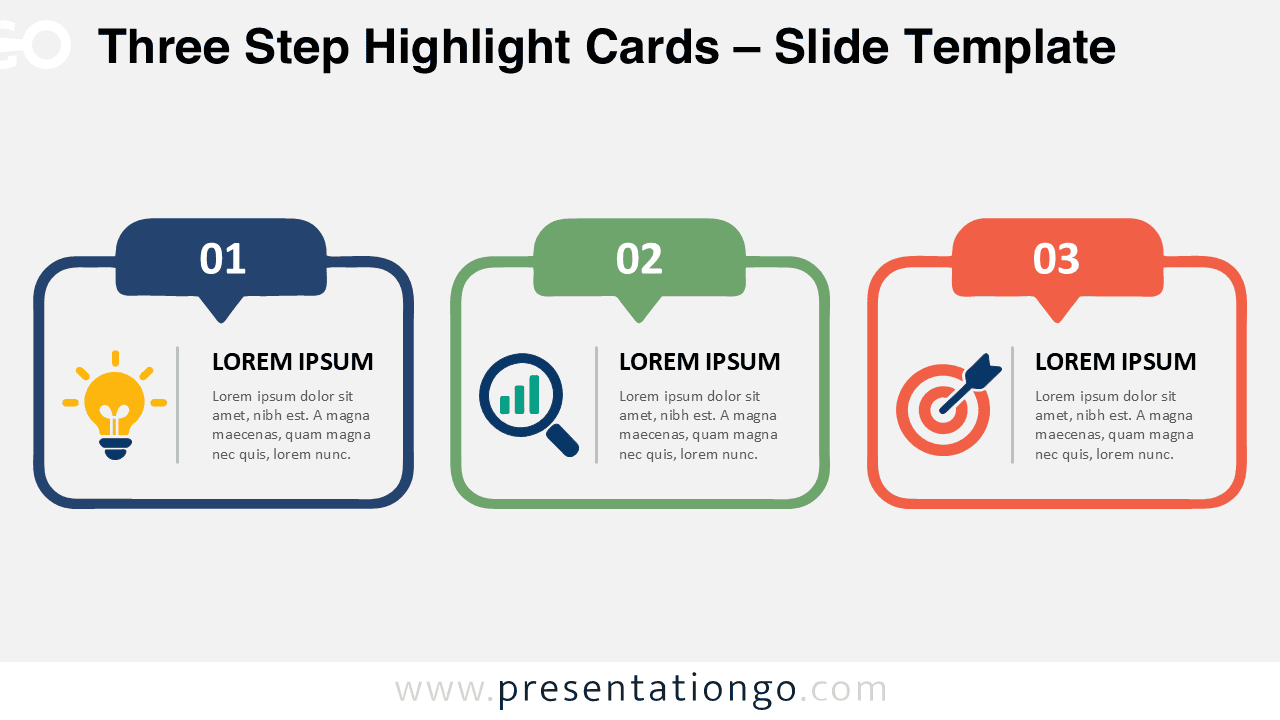
Download Three Step Highlight Cards for PowerPoint and Google Slides, featuring three editable cards with numbered tabs and modifiable icon placeholders.
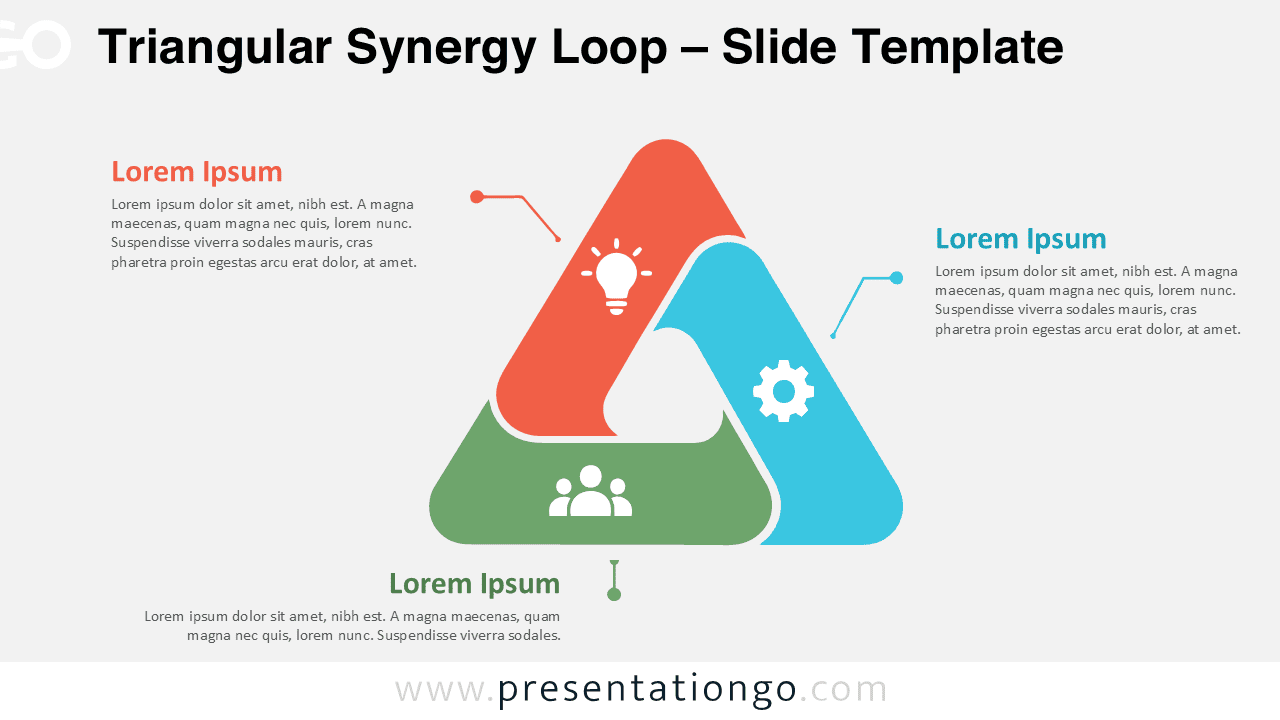
Use the Triangular Synergy Loop PowerPoint diagram in Google Slides to present three connected ideas, processes, teams, or strategic priorities.
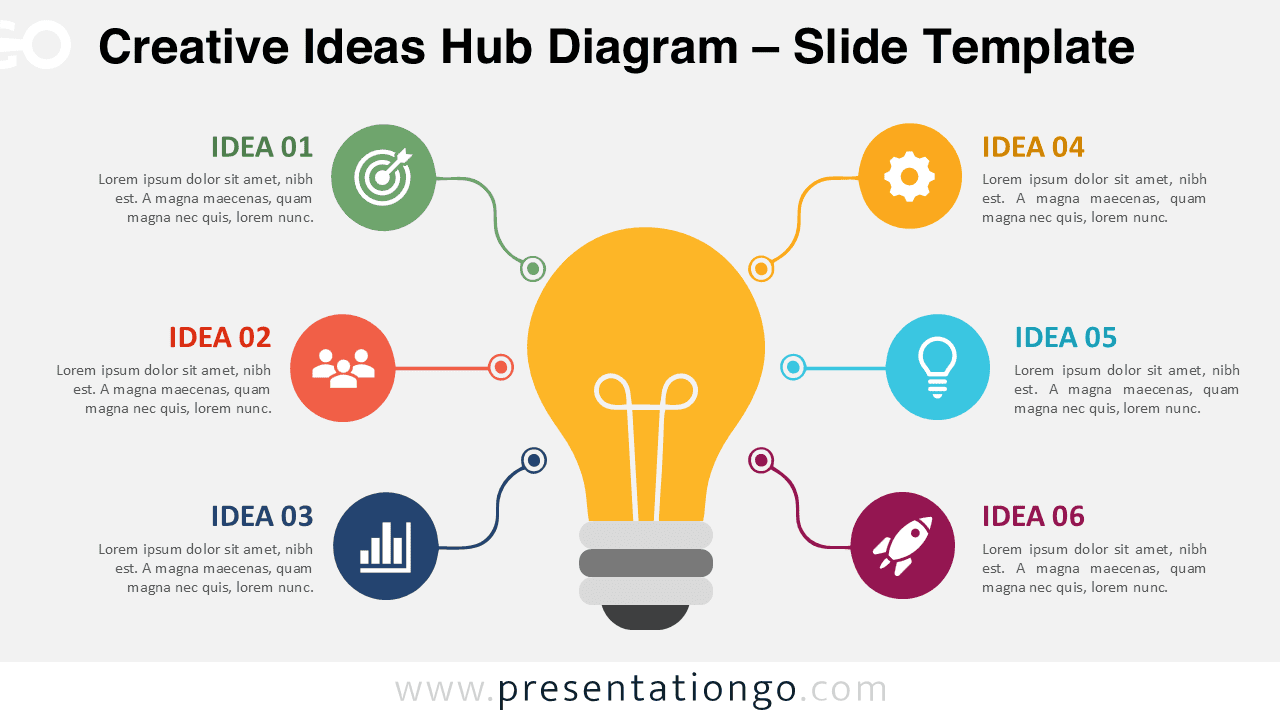
Use the Creative Ideas Hub Diagram for PowerPoint and Google Slides to organize six ideas around one central concept with editable text, shapes, and icons.
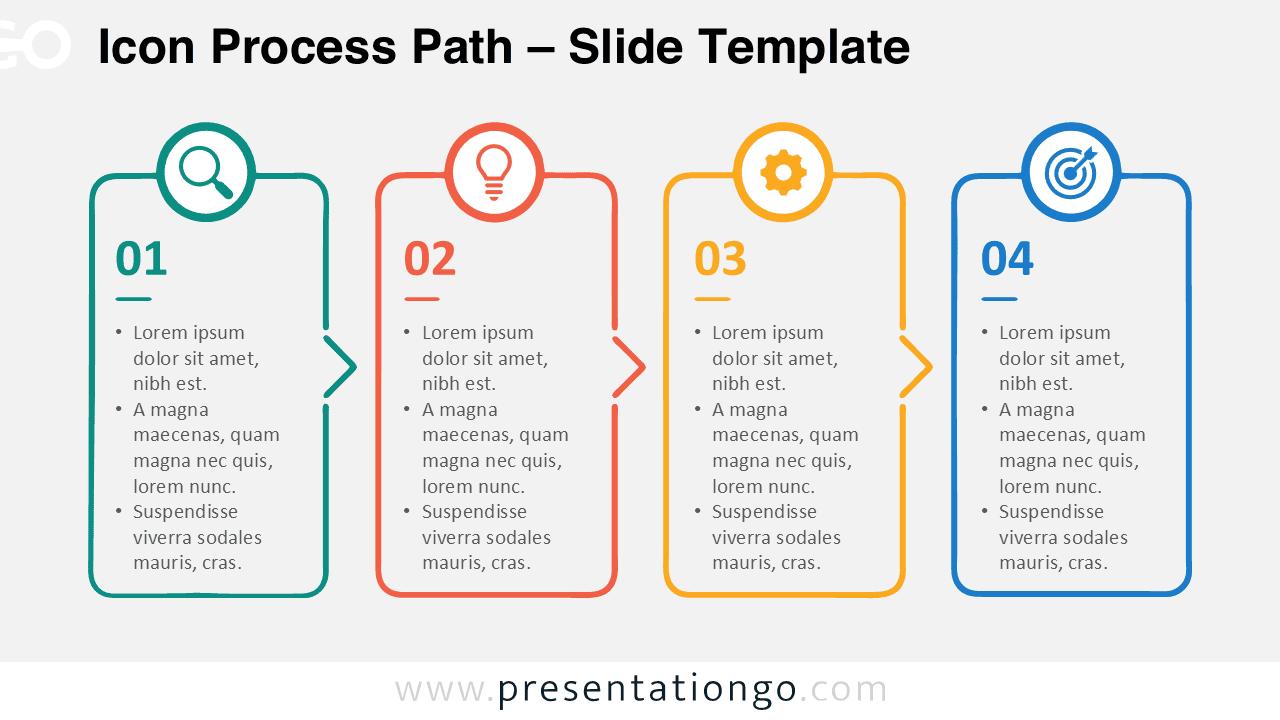
Download the Icon Process Path diagram for PowerPoint and Google Slides. Present four connected stages with editable text, shapes, and icon elements.
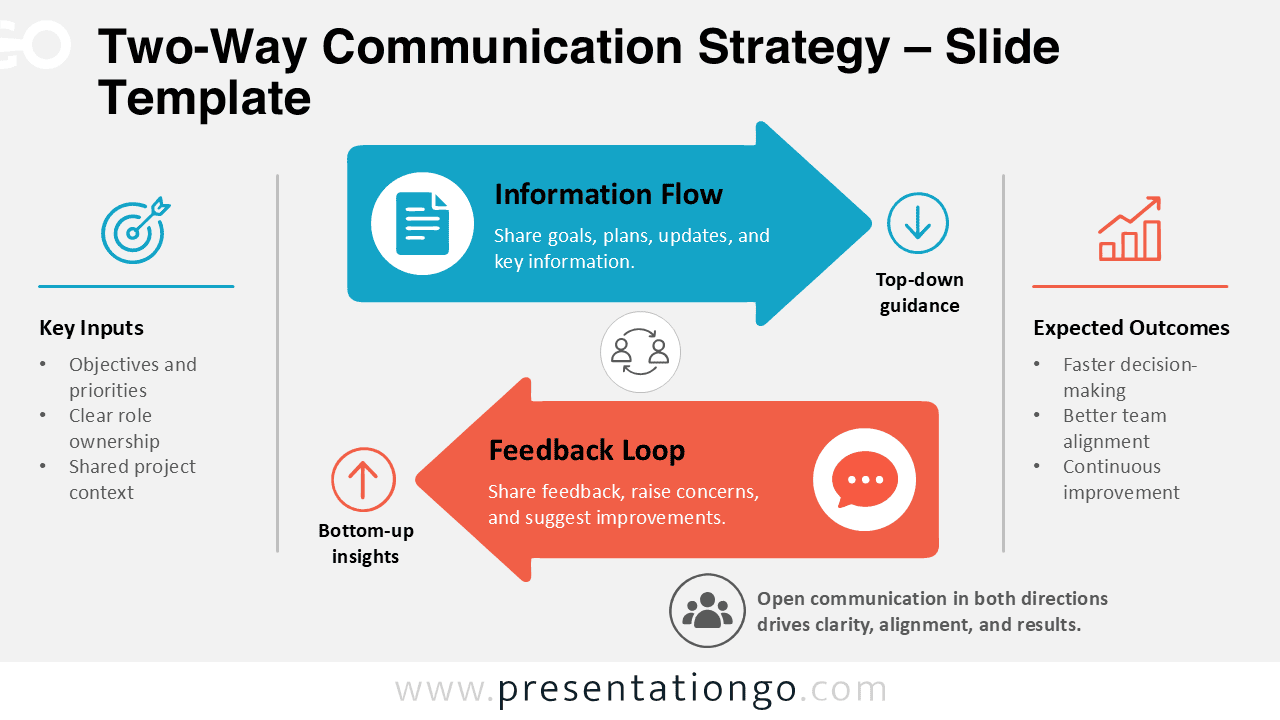
Download the Two-Way Communication Strategy diagram for PowerPoint and Google Slides to show top-down information flow and bottom-up feedback.
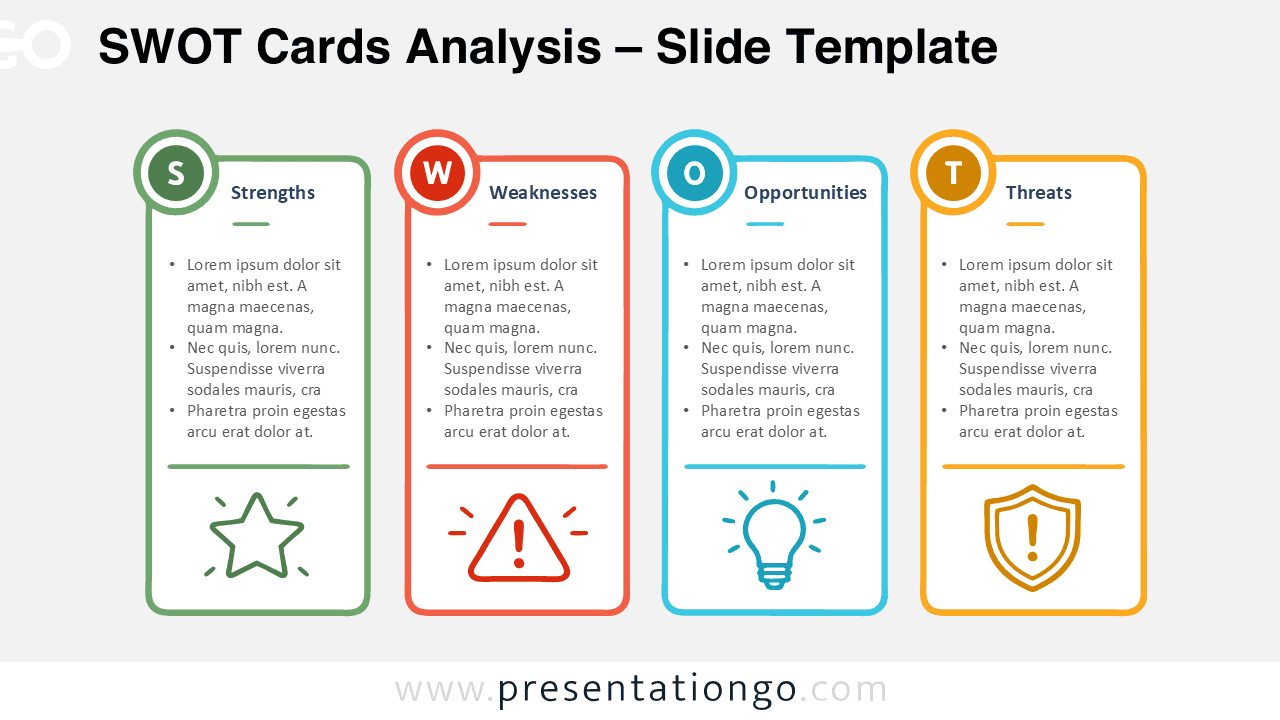
Download the SWOT Cards Analysis for PowerPoint and Google Slides. Edit four structured SWOT cards for strategic planning, reviews, and workshops.
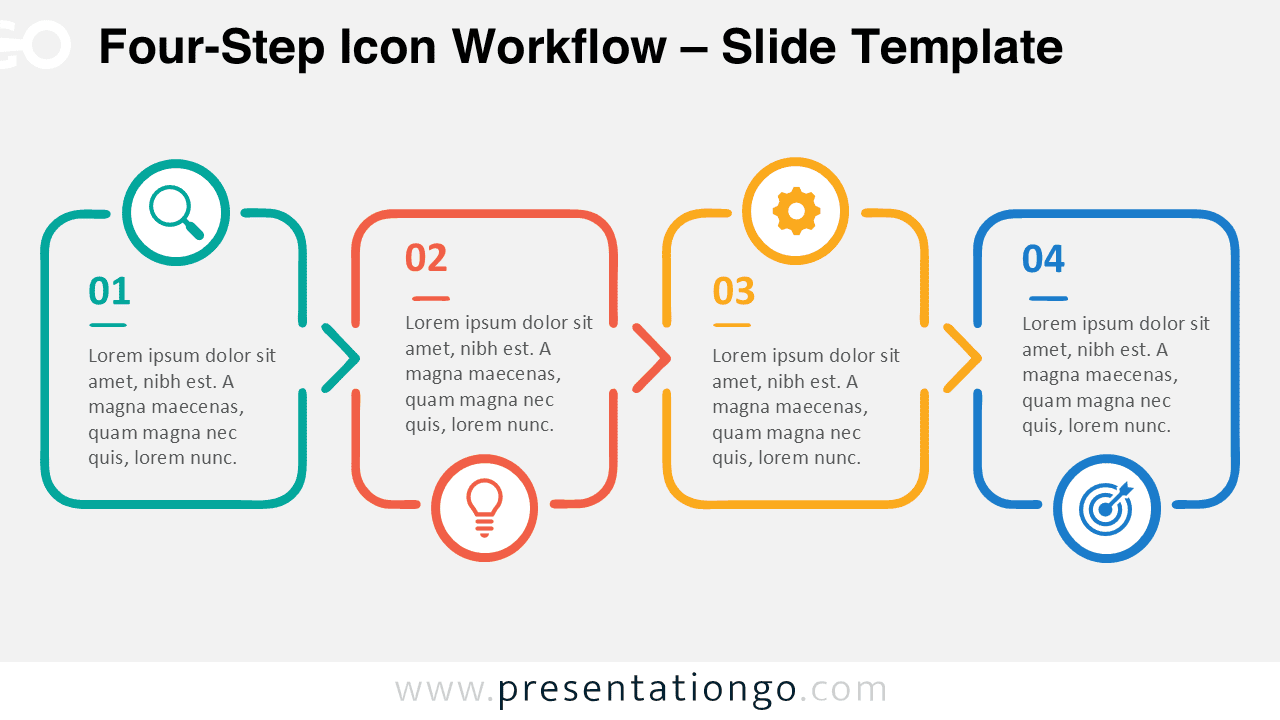
Download the Four-Step Icon Workflow for PowerPoint and Google Slides. Edit its connected process layout to explain four clear stages with ease.
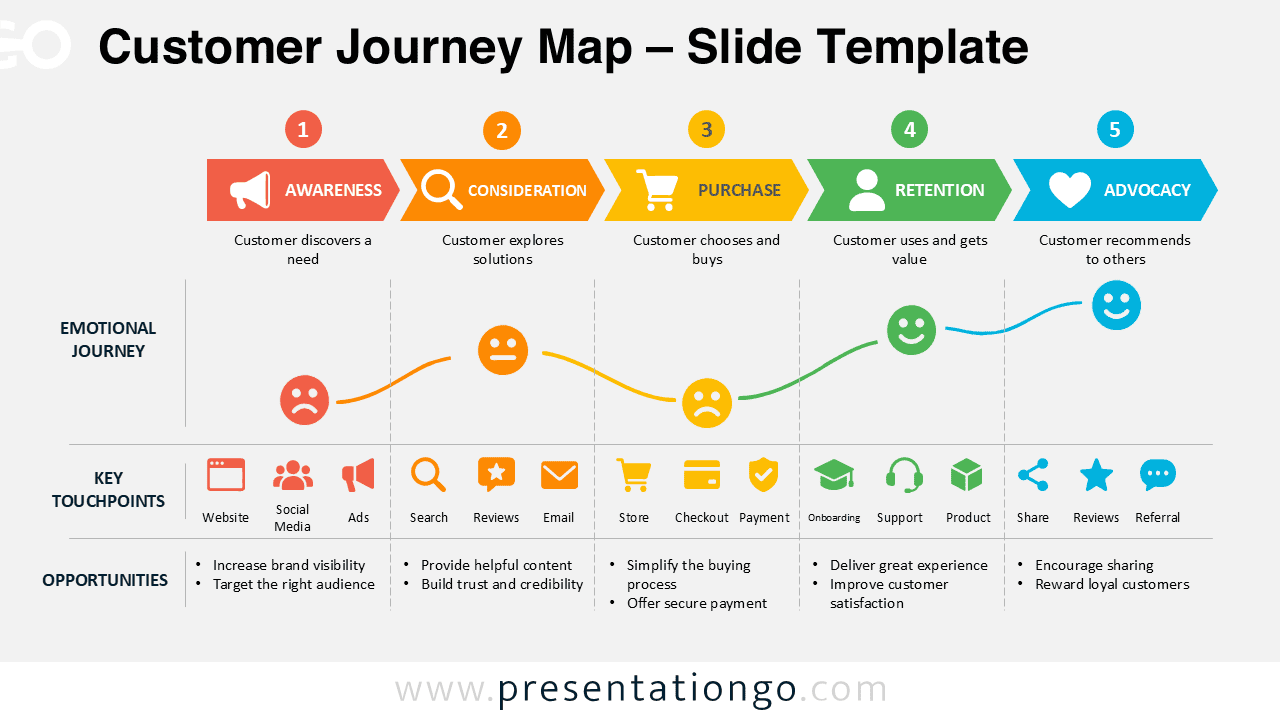
Download this Customer Journey Map for PowerPoint and Google Slides to visualize five customer stages, key touchpoints, emotions, and business opportunities.